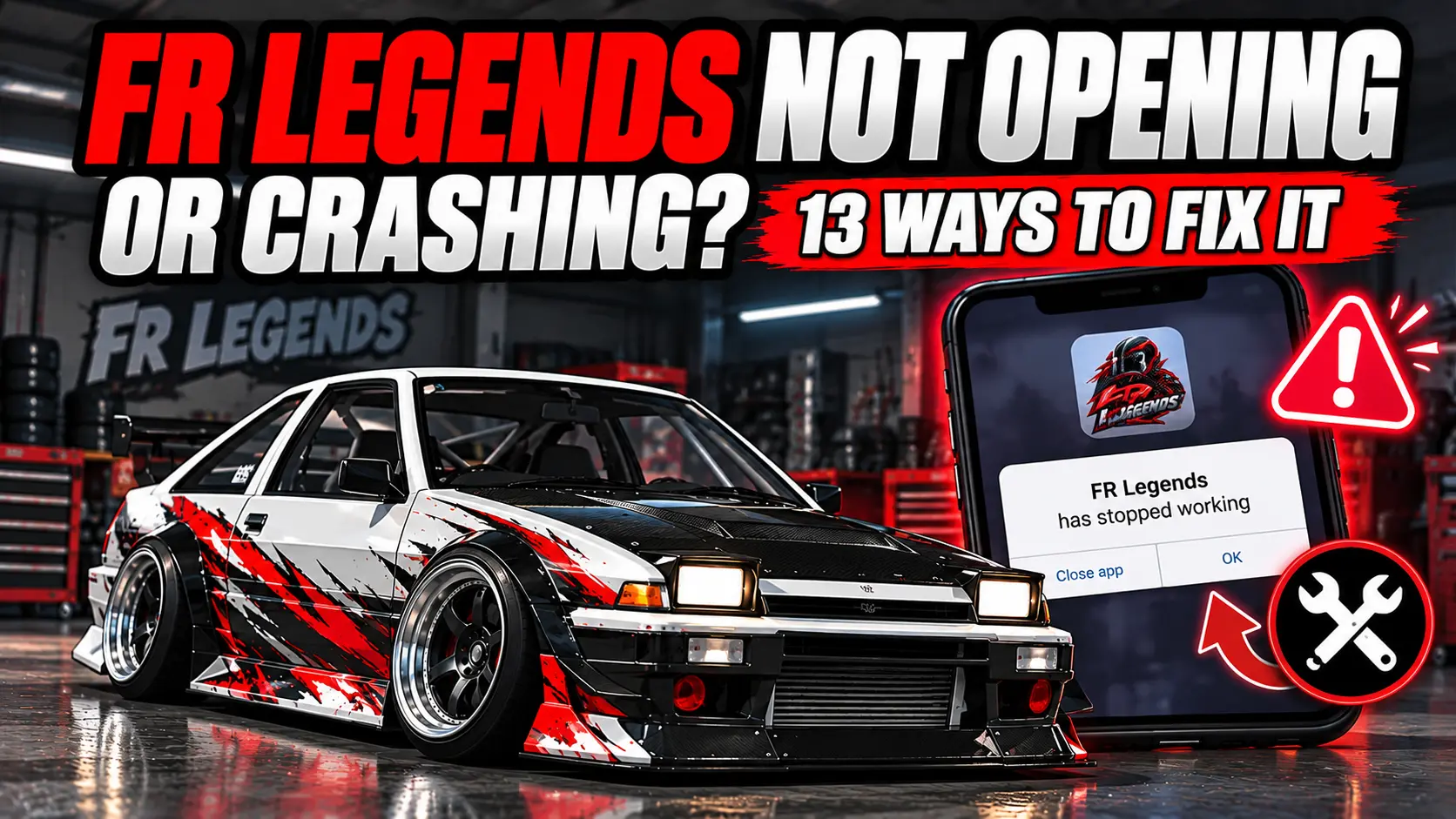
If FR Legends is not opening, keeps crashing, freezes on the loading screen, or closes by itself, the right fix depends on where the problem happens. A game that will not start needs a different solution from one that crashes after you install a mod or load a certain car.
This guide helps you find the problem first and then try the fix that matches it. You will also learn what to check before clearing data or reinstalling the game, so you do not make a bigger problem while trying to fix a smaller one.
Start by restarting FR Legends and your phone, then check for game and system updates. If the problem continues, check your free storage, close background apps, force stop the game, and clear its cache. If the crashing started after an update or mod, test that change before reinstalling the game.
First, Find Out Where FR Legends Is Failing
Before trying different fixes, look at what happens when you open the game.
Find the situation that looks most like your problem. You do not need to try every fix in this article if you already know what changed.
Why Is FR Legends Not Opening at All?
You tap the FR Legends icon, but the game does not properly start. It may appear for a moment, close immediately, or do nothing.
Fix: Start with the simple checks before changing game files.
- Close FR Legends completely.
- Restart your phone.
- Open FR Legends again.
- Check the app store for a game update.
- Check whether your phone has a system update.
- Make sure you have enough free storage.
Restarting matters because an app can fail to start when another process or temporary system problem is interfering with it. If the game still does not open after a restart and update, move to the next checks instead of repeatedly tapping the game icon.
Why Does FR Legends Open Then Close Immediately?
This is different from a game that never starts. You may see the FR Legends screen for a few seconds before the game suddenly closes.
Fix: Check whether the game can start cleanly before changing anything else.
- Restart your phone.
- Close other apps running in the background.
- Check for a FR Legends update.
- Check your available storage.
- Force stop FR Legends.
- Open the game again.
If the game still closes immediately, think about what changed before the problem started. If you recently installed a mod, changed game files, or updated the game, that change becomes important when finding the cause.
Why Is FR Legends Stuck on the Loading Screen?
Sometimes FR Legends does not actually crash. Instead, it stays on a loading screen and never reaches the garage or the next part of the game.
Fix: Close the game completely and open it again.
If the loading problem happens only once, restarting the game may be enough. If it keeps happening, check your storage and make sure the game is updated.
You should also notice when the loading problem happens. If the game loads normally but freezes when entering one particular map or custom area, the problem may be connected to that content rather than the entire game.
If the problem happens with a specific track, you can also compare it with another track from the FR Legends tracks list and see whether the game behaves normally there.
Why Does FR Legends Crash During Gameplay?
If you can reach the garage and start playing but the game closes while driving, the problem is different from a startup crash.
Fix: Reduce the load on your phone and test the game without extra content.
- Close other apps before starting FR Legends.
- Let the phone cool down if it is hot.
- Lower the game’s graphics settings.
- Restart FR Legends.
- Test the normal game without recently added custom content.
If the game becomes stable after lowering the graphics or removing extra content, you have a useful clue. Your phone may be struggling with the amount of work being done during gameplay.
If the game stays open but becomes very slow or choppy instead of closing, that is mainly a performance problem. Our FR Legends lag fix guide covers that problem separately.
Why Did FR Legends Start Crashing After an Update?
If FR Legends worked normally before an update and started crashing afterward, do not immediately assume that your phone has suddenly become incompatible.
Fix: Check the game and your phone again after the update.
- Restart your phone.
- Check whether another FR Legends update is available.
- Check for a phone system update.
- Test the game without recently added modifications.
- Notice whether the crash happens at the same point every time.
Game updates can change files, features, and how certain content works. A modification that worked with an older version may also stop working correctly after the game changes.
The current FR Legends app listing shows that recent updates have included bug fixes, including a fix for an occasional freeze when entering a custom online map. This is another reason to check your game version before making larger changes.
Why Does FR Legends Crash After Installing a Mod?
This is one of the easiest problems to diagnose if the timing is clear.
If the game worked normally, you installed a modification, and the crashing started afterward, the new modification is something you should test first.
Fix: Remove or reverse the recent change if possible, then test the normal game.
- Remember which files or modifications you changed.
- Remove or revert the recent modification if you can.
- Open the normal game.
- Check whether it still crashes.
If the game becomes stable again, the modification may not match your game version or may have changed files that the current game needs.
When installing another car modification, use the correct files and follow the proper installation process. Our FR Legends car mod installation guide explains the process and the checks to make before using a modified car.
Why Does FR Legends Crash When Loading a Certain Car?
If the game works normally with other cars but closes when you select one particular car, do not immediately reinstall the whole game.
Fix: Test another car first.
- Open FR Legends again.
- Select a different car.
- Play for a short time.
- Try loading the original car again.
If only one modified car causes the crash, the problem may be related to that car or its files. This is especially important if the car was installed recently.
If several normal cars also cause the game to close, the problem is probably not limited to one car. Continue with the general troubleshooting steps in this guide.
Why Does FR Legends Crash When Opening the Livery Editor?
If FR Legends works while driving but closes when you open customization or the livery editor, test whether the problem happens with every car or only one.
Fix: Start with a different car and a simple livery.
- Open another car.
- Enter the livery editor.
- Test it without recently imported custom content.
- Close and reopen FR Legends if necessary.
If another car works normally, the original car or its custom content needs closer checking.
If you are working with imported designs, you can also check our FR Legends livery codes collection for a different design to test.
Can a Low-End Phone Make FR Legends Crash?
A lower-end phone can have a harder time running a demanding 3D game, especially when the phone is hot or other apps are using its resources.
Fix: Reduce the load before deciding that the game itself is broken.
- Close background apps.
- Lower graphics settings.
- Let the phone cool down.
- Restart the phone before playing.
- Test the normal game without heavy custom content.
If the game runs but becomes slow, that is not the same as a crash. If it repeatedly closes under heavy load, reducing the graphics and other workload can help you determine whether the device is reaching its limits.
Can Low Storage Cause FR Legends Problems?
Very little free storage can cause broader problems on a phone, especially when apps need space for temporary files, updates, or other data.
Fix: Check your phone’s storage before reinstalling the game.
Remove files or apps you no longer need and make some free space. Then restart the phone and test FR Legends again.
You do not need to delete FR Legends immediately just because your storage is low. Freeing space first is a much safer test.
How Do You Clear the FR Legends Cache?
Temporary app data can sometimes cause problems when it becomes corrupted or stops working correctly.
Fix: On Android, you can usually clear the cache from the app settings.
- Open your phone’s Settings.
- Open Apps or App Management.
- Find FR Legends.
- Open Storage or Storage & Cache.
- Choose Clear Cache.
- Open FR Legends again.
The exact menu names can be different depending on your phone.
Be careful with the difference between Clear Cache and Clear Data. Clearing cache removes temporary files. Clearing app data is a much bigger step and can affect locally stored game information.
Should You Force Stop FR Legends?
Yes, force stopping the game is a useful step when FR Legends is frozen, will not open correctly, or keeps behaving as if it is still running.
Fix: Force stop the app, then open it again.
- Open Settings.
- Open Apps.
- Select FR Legends.
- Tap Force Stop.
- Confirm if your phone asks.
- Open FR Legends again.
Force stopping the app is different from uninstalling it. You are simply closing the current app process so it can start again from a clean state.
Should You Reinstall FR Legends?
Reinstalling can help when the game’s installation or local files are damaged, but it should not be your first step.
Fix: Try the safer troubleshooting steps first and protect your progress before removing the game.
Before uninstalling FR Legends, make sure you understand what game data is stored locally and what you need to keep. Removing an app can erase locally stored data.
After you have protected anything important, you can reinstall a clean version of the game and test it before adding mods, custom files, or other changes.
If the clean installation works but the game crashes again after adding a particular modification, you have a much clearer idea of what caused the problem.
How to Find the Real Cause of the Crash
If you have tried several fixes and still do not know what is wrong, stop changing multiple things at once. Use one simple test at a time.
Check the app, updates, storage, and device compatibility first.
Check app files, available resources, and recent changes.
Restart the game, check storage, updates, and the content being loaded.
Check heat, graphics settings, background apps, and custom content.
Remove or reverse the recent modification and test the clean game.
Test other cars or designs to see whether the problem is limited to that content.
This approach is better than changing five settings at the same time. When you change one thing and test the game again, you have a better chance of knowing which change actually helped.
FR Legends Not Opening or Crashing: Quick Troubleshooting Table
| Problem | What to Check First |
|---|---|
| FR Legends does not open | Restart the phone, update the game, and check storage. |
| Game opens and closes | Force stop the app and check recent changes. |
| Stuck on loading | Restart the game, check storage, updates, and the content being loaded. |
| Crashes during gameplay | Close background apps, reduce graphics, and check phone temperature. |
| Started after an update | Check the current game version and test without recent modifications. |
| Started after installing a mod | Remove or reverse the recent modification and test the clean game. |
| Only one car crashes | Test another car and check the affected car’s custom files. |
| Livery editor crashes | Test another car and another or simpler livery. |
| Very little free storage | Free up space before reinstalling the game. |
| Nothing else works | Protect your local data and consider a clean reinstall. |
Frequently Asked Questions
Why is FR Legends not opening?
Restart your phone, check for a game and system update, make sure you have enough free storage, and try force stopping FR Legends. If it still does not open, check whether the problem started after a mod or another recent change.
Why does FR Legends crash on startup?
Start with a phone restart, game update, storage check, and force stop. If the problem started after changing game files or installing a mod, test the game without that change.
Why is FR Legends stuck on the loading screen?
Close the game completely and open it again. If the problem continues, check storage, updates, and whether the loading problem happens only with a particular car, map, or custom content.
Why does FR Legends crash after an update?
Check that you have the latest available game version and restart your phone. If you use modifications, test the game without them because a change in the game version can affect modified files.
Why does FR Legends crash after installing a mod?
Remove or reverse the recent modification if possible and test the normal game. If the crashing stops, the modification or its compatibility with your game version needs to be checked.
Can low storage make FR Legends stop working?
Very low free storage can cause broader problems on a phone. Free up some space, restart the phone, and test FR Legends before deciding to reinstall it.
Should I clear FR Legends cache?
Yes, clearing the cache is a reasonable troubleshooting step when the app is not working correctly. Be careful not to confuse Clear Cache with Clear Data because they are different actions.
Will reinstalling FR Legends delete my progress?
It can remove locally stored app data. Before uninstalling the game, make sure you understand what data is stored locally and protect anything you need to keep.
Why does FR Legends crash when loading one car?
If other cars work normally, test the affected car again and check whether it was recently modified. A problem limited to one custom car can be different from a problem affecting the whole game.
Why does FR Legends keep crashing?
The cause can depend on when the crash happens. Check recent updates or mods, available storage, background apps, phone temperature, graphics settings, and the specific car or content being loaded.
Conclusion
When FR Legends is not opening or keeps crashing, do not start by changing everything at once. First find out exactly where the game fails.
If it does not open, start with the phone, app update, storage, and app process. If it crashes during gameplay, check heat, graphics, background apps, and custom content. If the problem started after an update or mod, test that change before taking bigger steps.
Only move to clearing data or reinstalling when the simpler fixes have failed and you have protected any local game data you need. Finding the exact trigger makes troubleshooting much easier than trying random fixes.